


Quick Start Guide Hub and Node Firmware Update & Pairing
Disclaimer: The user is required to observe and adhere to the currently applicable instruction manuals for all Vemaventuri products utilized.
01 Firmware Update
Step 1: Switch on the Hub
-
Make sure the Hub is charged.
-
Press and hold the ON/OFF button until all four LEDs light up.
- Enter your PIN
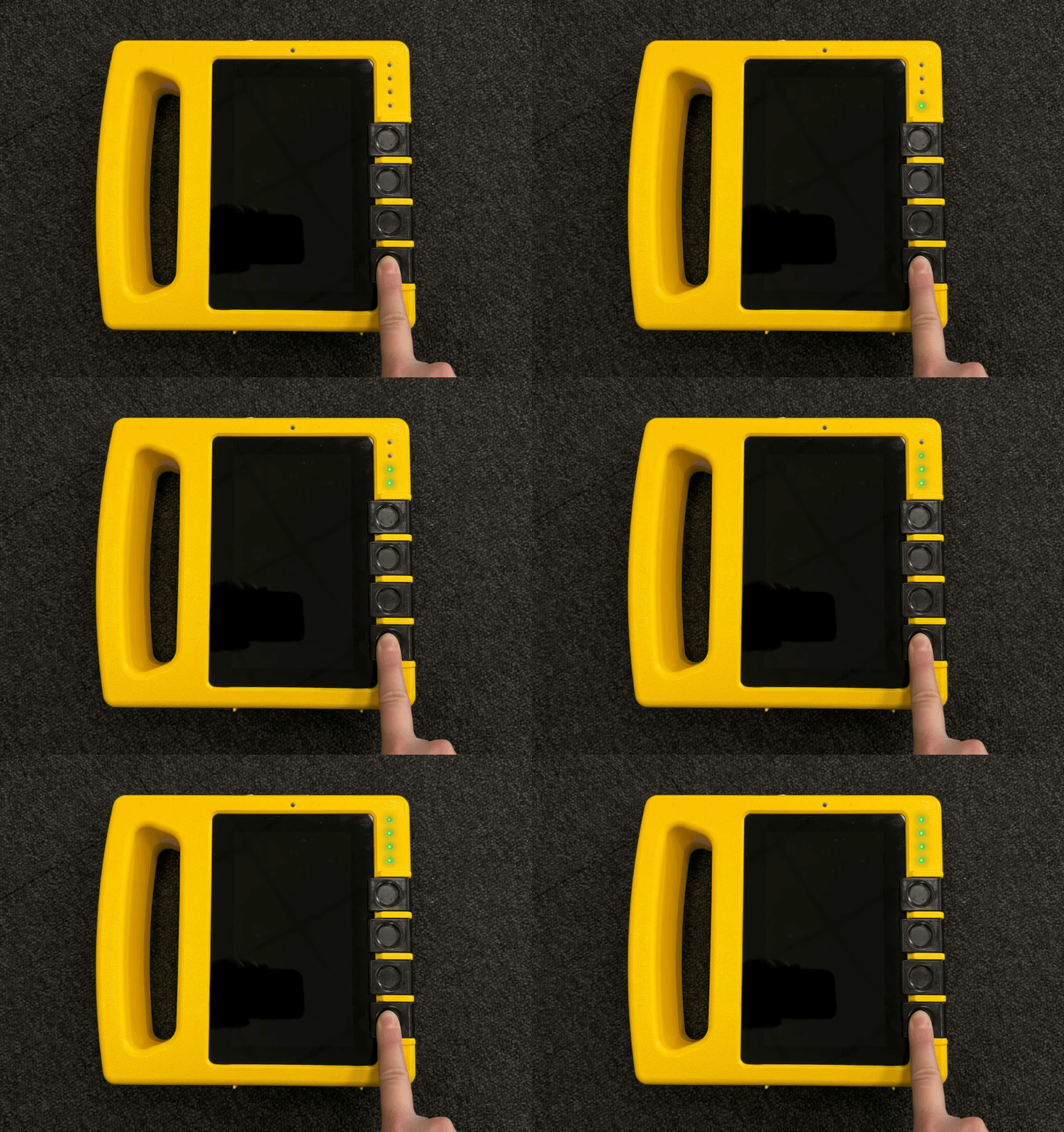
Step 2: Open System Information
Tap the gear icon on the main screen to open the Settings menu.
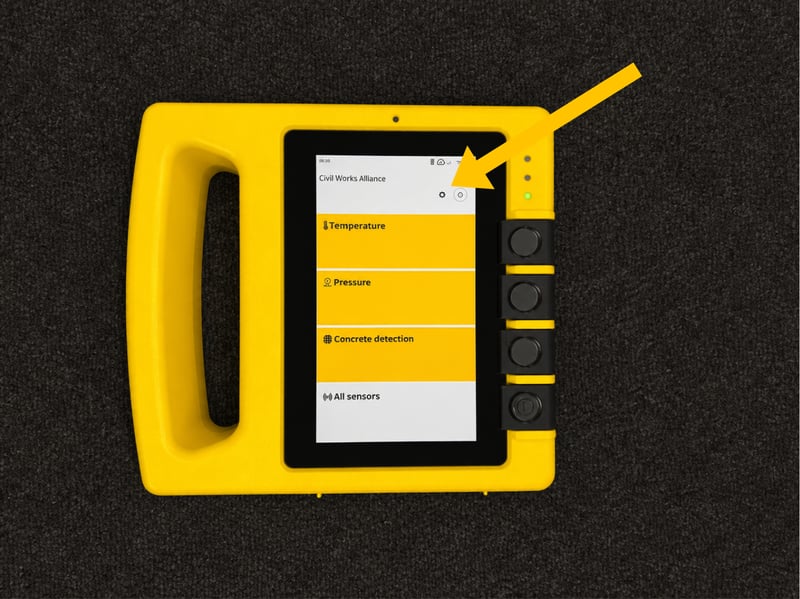
Then tap “System Information”.
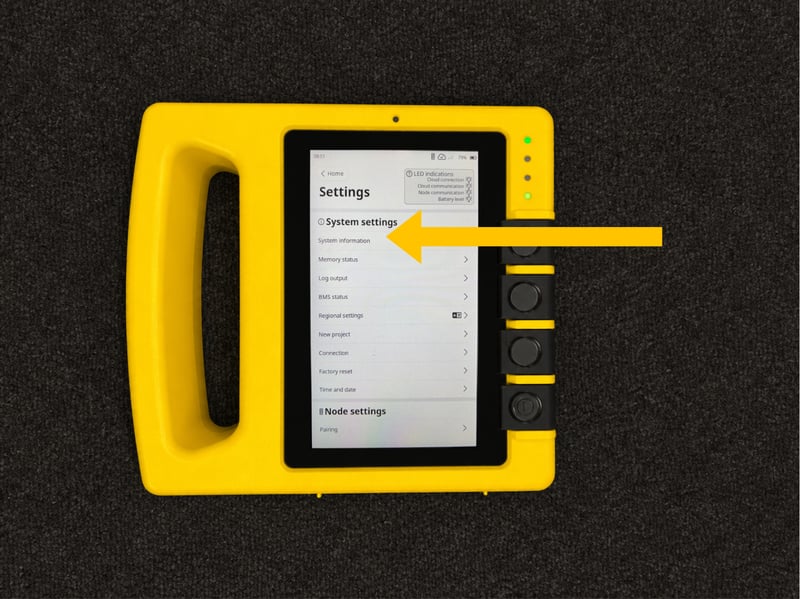
Step 3: Start the update
“Current Version” shows the installed firmware. “Firmware Update Status” shows whether a new version is available.
If it is, tap “Start” and then “Continue”. During the update, “Firmware Update Status” shows the download and installation progress.
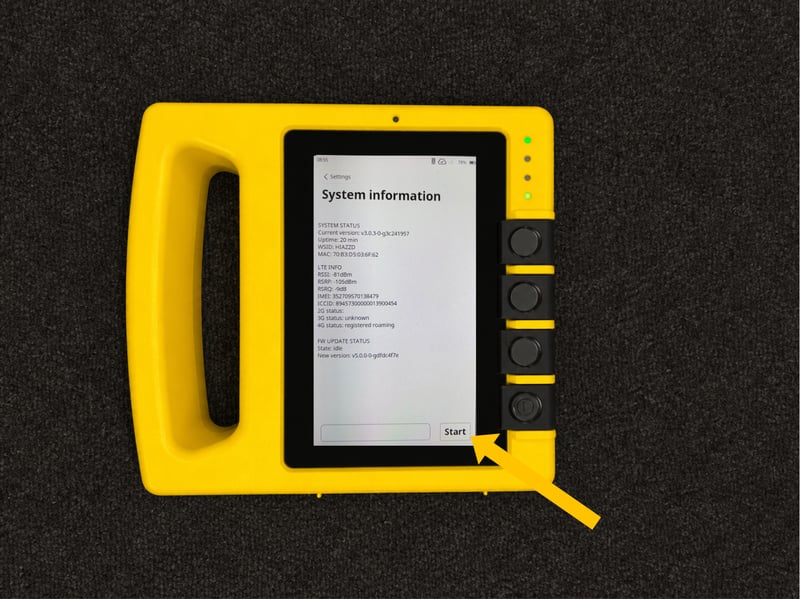
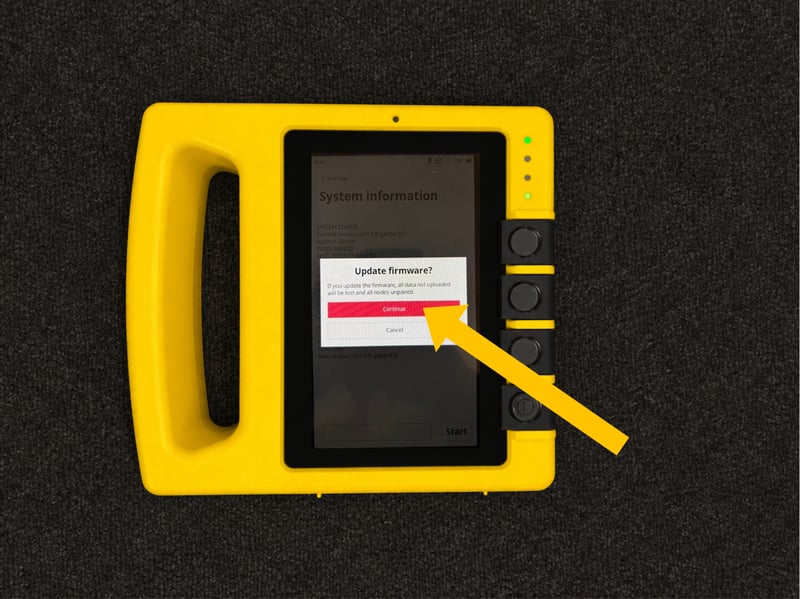
Warning: Updating the firmware deletes all data that has not been uploaded yet and unpairs all Nodes.
02 Pairing a Node
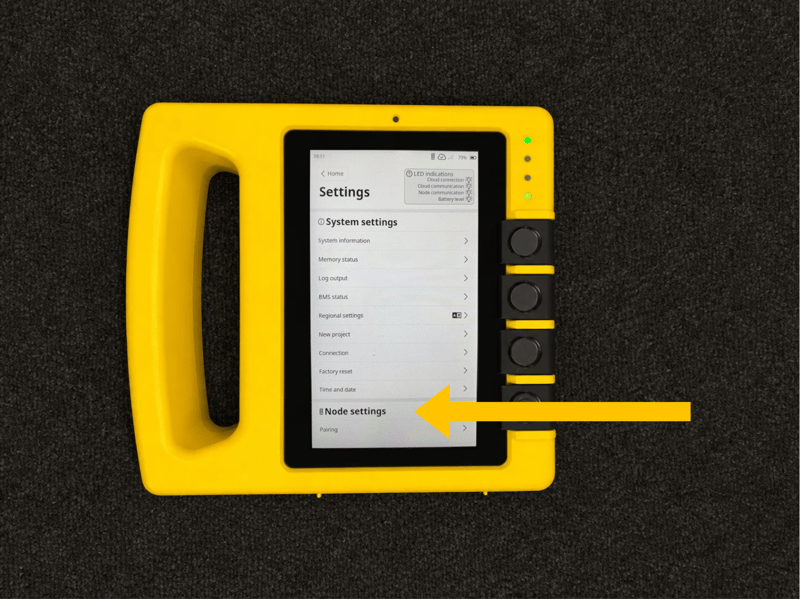
Step 1: Open the Pairing menu
Tap the gear icon on the main screen to open the Settings menu.
“Paired Nodes” shows the WSIDs of the Nodes that are currently paired.
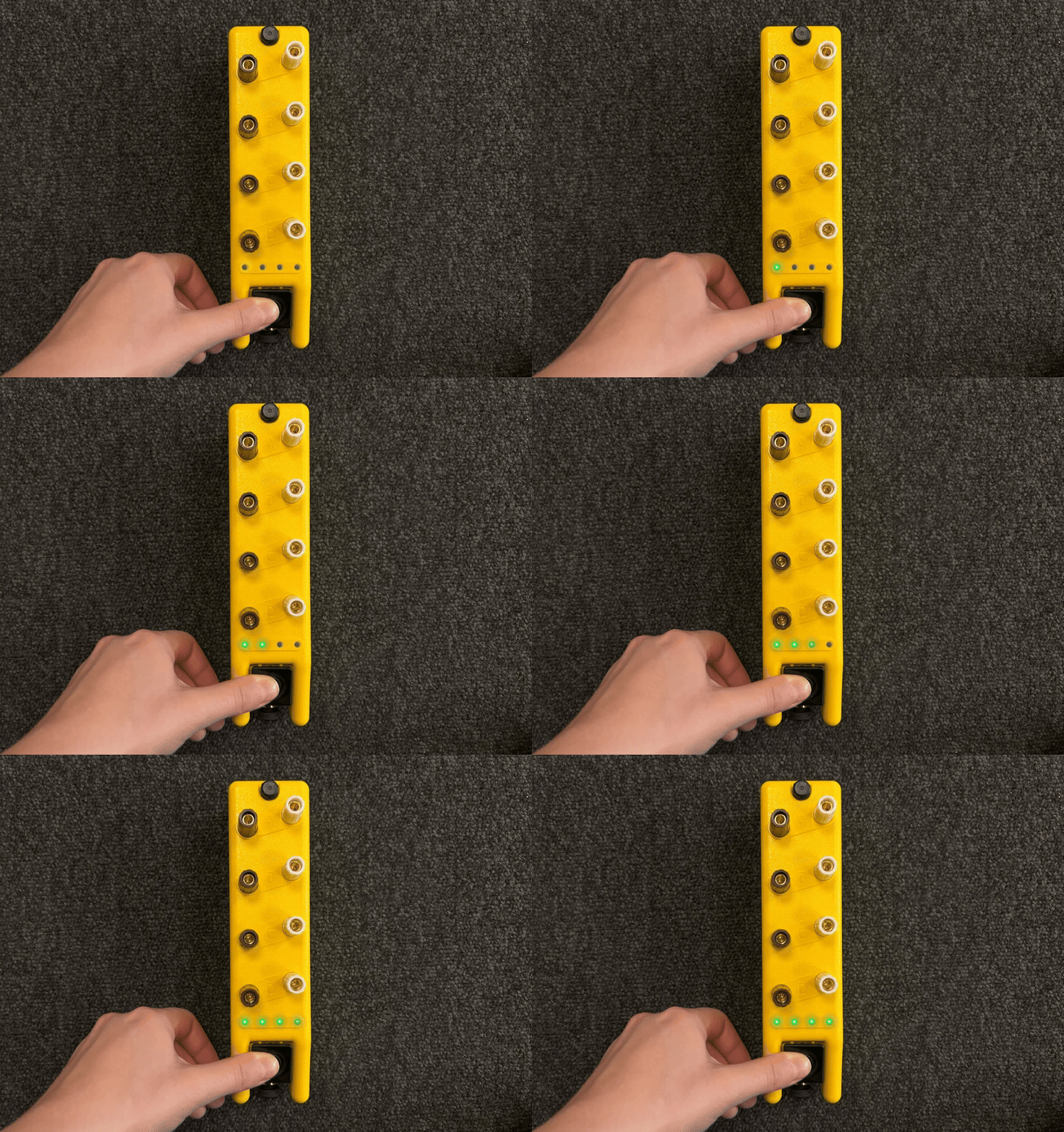
Step 2: Start pairing
Press and hold the function button on the Node until all four LEDs light up green.
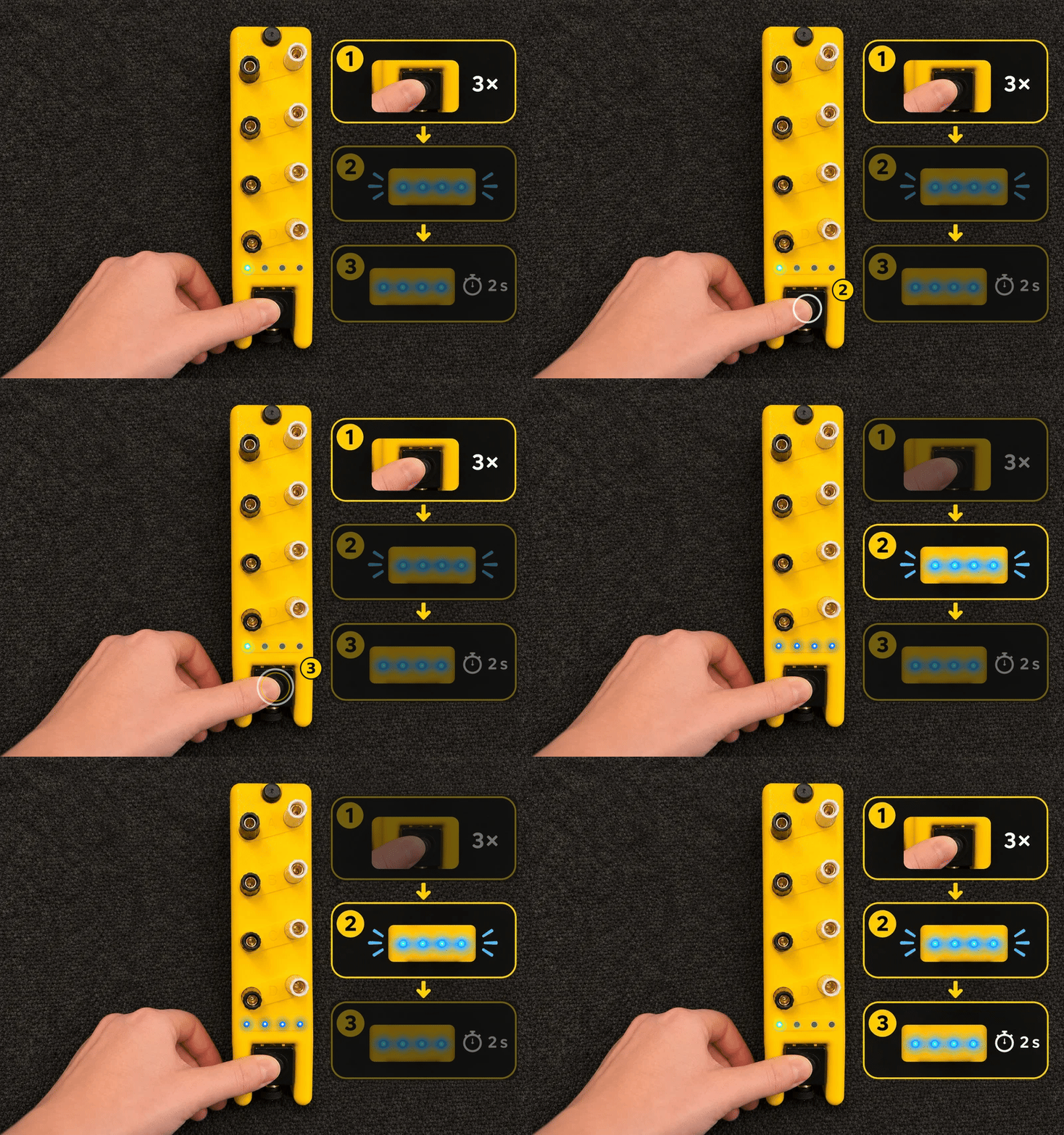
1) Press the function button three times.
2) The LEDs flash blue rapidly while the Node connects to the Hub.
3) If the LEDs light up blue for 2 seconds, pairing was successful. The Node then returns to operating
Step 3: Exit the Pairing menu
If the Node's LEDs flash yellow, the Node is paired but not yet synchronized. Exit the Pairing menu on the Hub. If the LEDs light up solid green, the Node is ready to measure.
Note:
- A maximum of 8 Nodes can be paired with one Hub.
- If pairing does not happen within 30 seconds, the Node switches off.
- If the LEDs flash white, a firmware update is running on the Node. Do not pair any other Nodes during this time.
03 Swiching the Network Mode
In WiFi mode, all Nodes communicate directly with the Hub. In Mesh mode, the Nodes pass data along to each other in a chain, which can extend the overall range.
Tap the gear icon on the main screen to open the Settings menu.
Tap on the Pairing Menu in the Node settings.
Tap the Mesh mode switch.
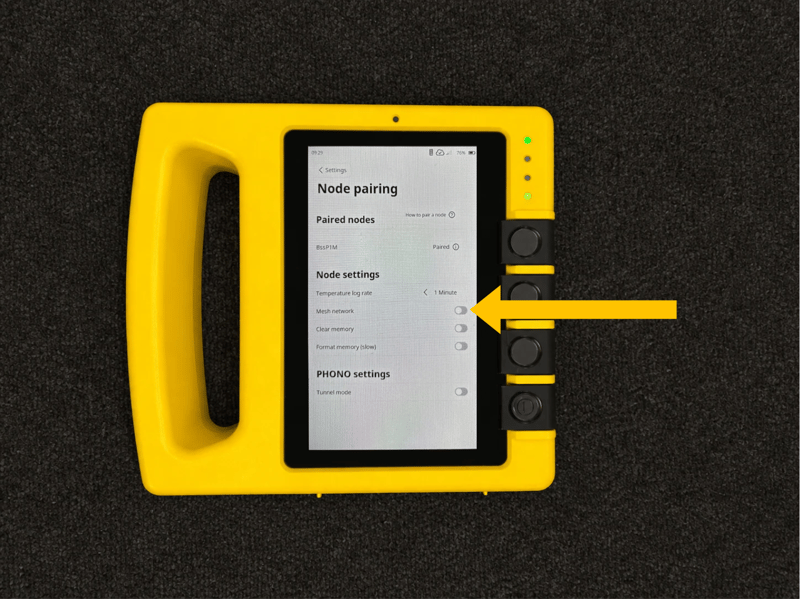
The system informs you that the currently paired Nodes will be unpaired.
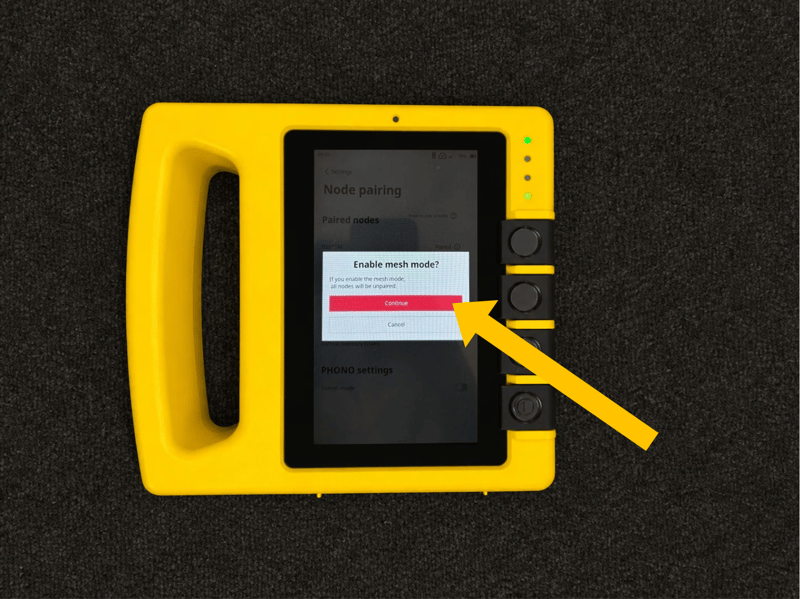
Note: Switching the mode unpairs all paired Nodes. Pair them again afterwards (Section 02 Pairing a Node).