


Quick Start Guide Limits and Notifications
02 Setting Limits
Step 1:
- Navigate to “My Projects”.
- Select the project where you would like to set a limit.
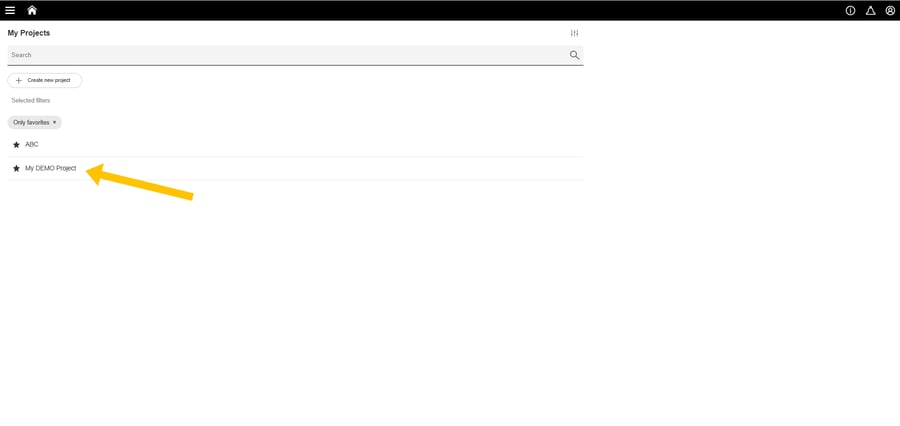
Step 2:
- Open the Dashboard.
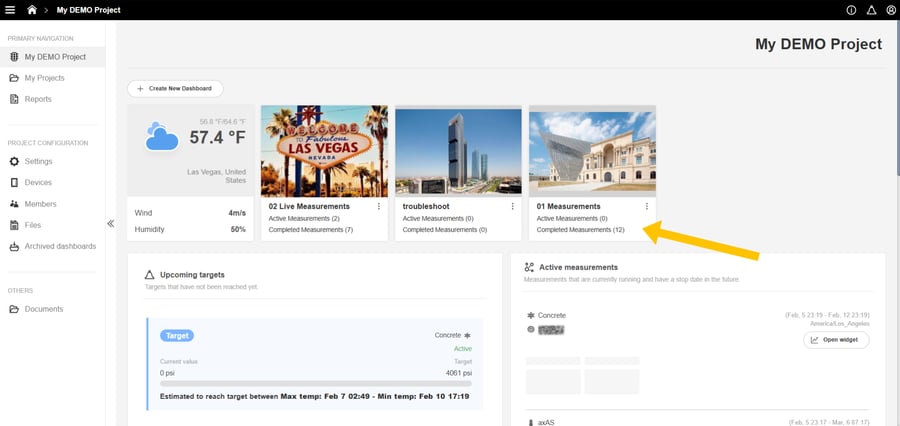
- Select the measurement for which you want to define a limit.
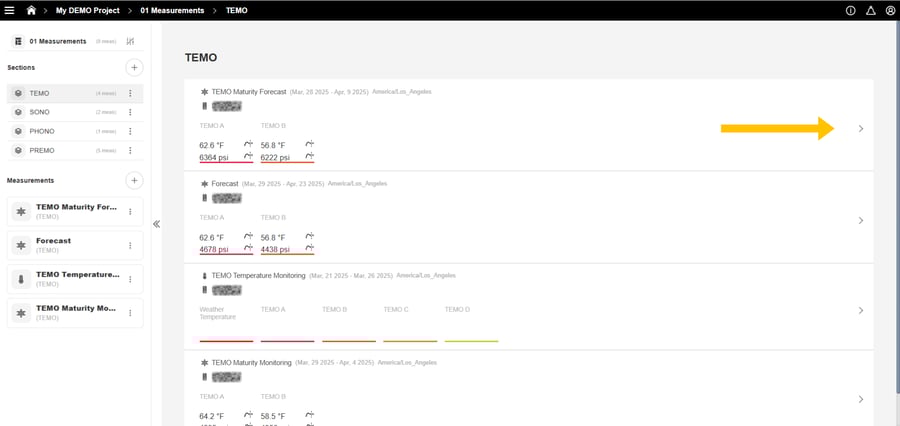
- Limits can be configured for: TEMO and PREMO.
Step 3:
- Within the selected measurement, click on “Configuration”.
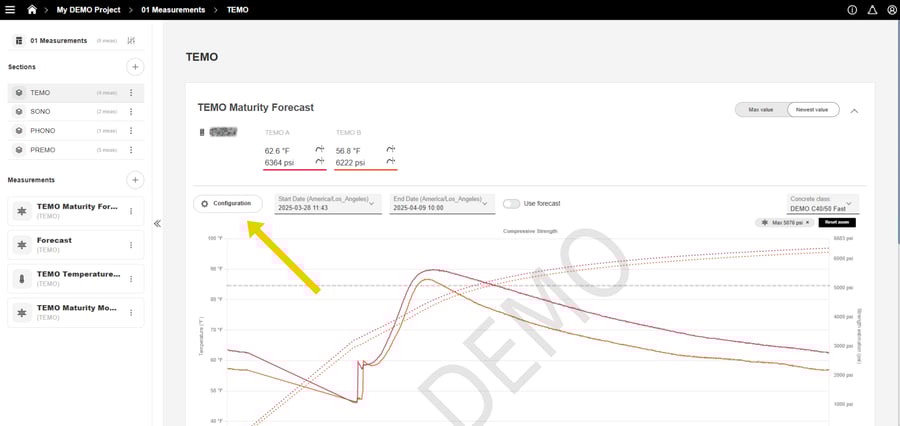
- A side panel will open.
- Select Channel Limits / Targets.
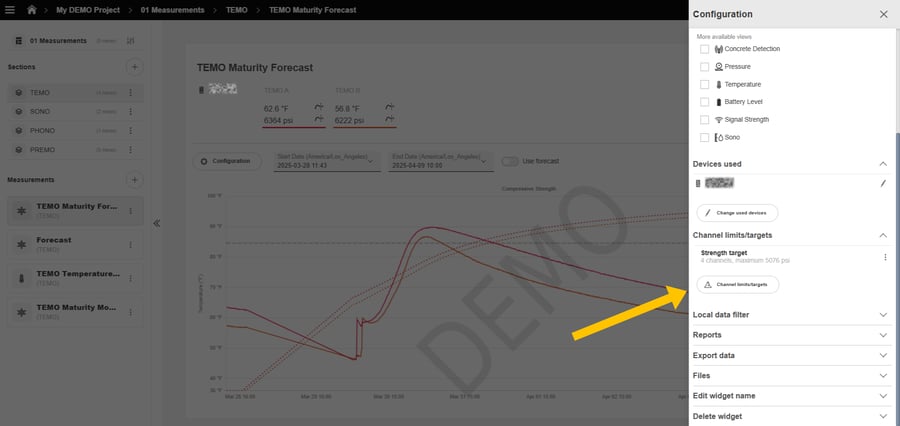
Available configuration options:
TEMO (Maturity Mode):
- Minimum Temperature
- Maximum Temperature
- Strength
TEMO (Temperature Only Mode):
- Minimum Temperature
- Maximum Temperature
- Delta-T
- Freeze Test
PREMO:
- Maximum Pressure
Note: Limits cannot be configured for SONO and PHONO.
Step 4
- Define the desired limits for each measurement and confirm your settings.
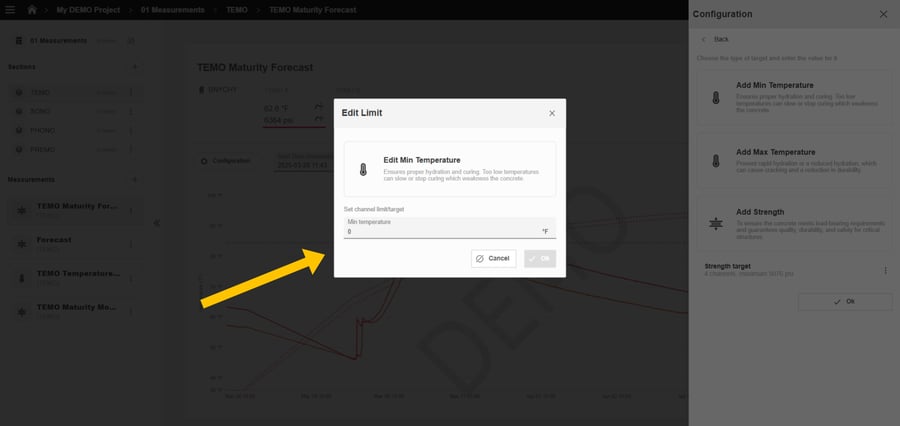
Note: Limits and targets can be edited or deleted at any time by clicking on the menu options next to the configured target.
03 Creating Notifications
Step 1:
- Within your project, go to Settings.
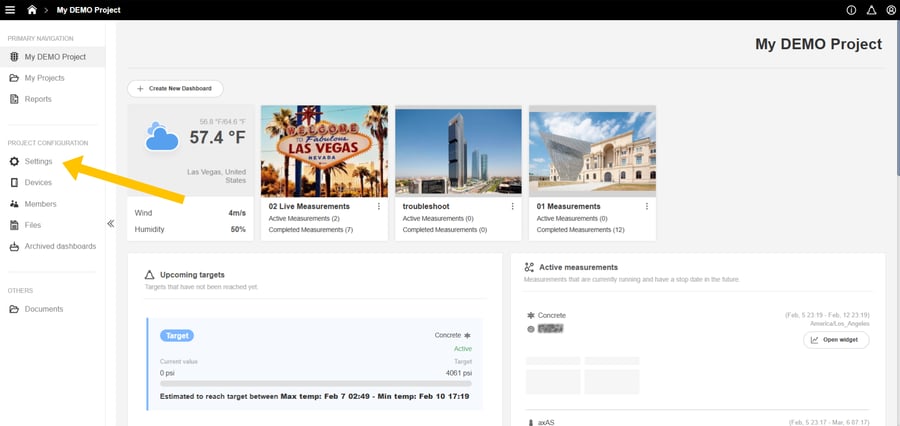
- Scroll down to the Notifications section.
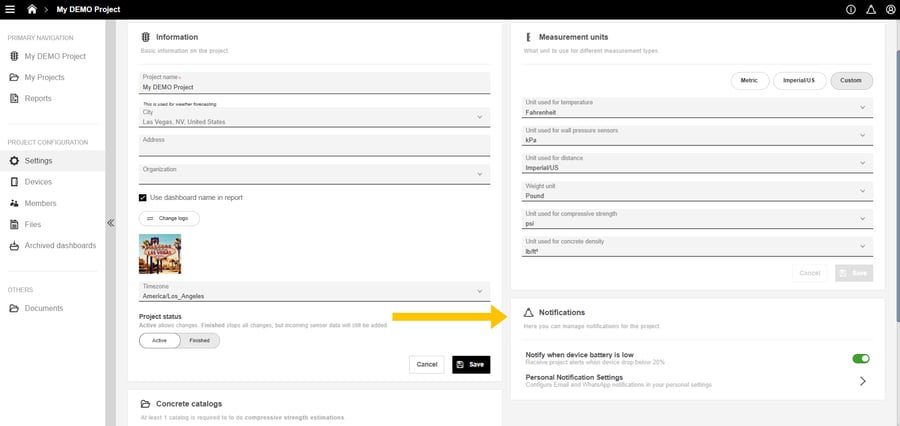
- Enable or disable “Notify when device battery is low”, depending on your preference.
Step 2:
- Click on “Personal Notification Settings”.
- Activate Email and/or WhatsApp notifications.
- Enter your email address and/or mobile phone number.
- Click "Save" to confirm your settings.
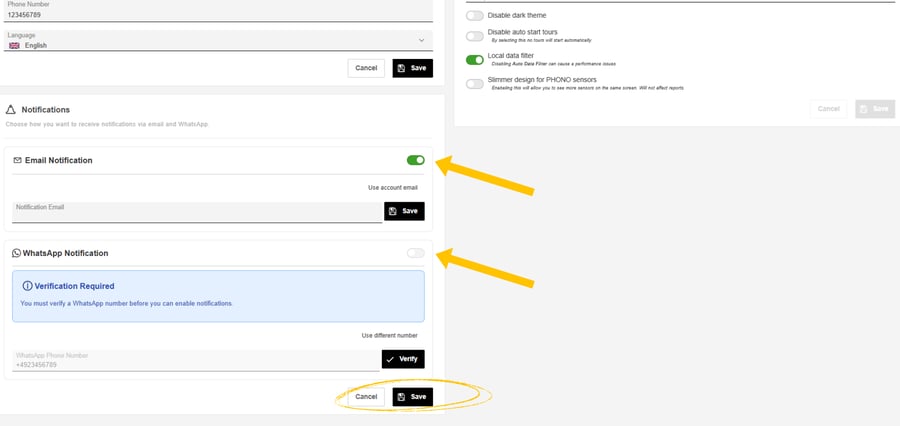
Note: If you activate WhatsApp notifications, your mobile phone number must be verified. You will receive a verification code on your phone. Enter this code in the web application to complete the verification process.