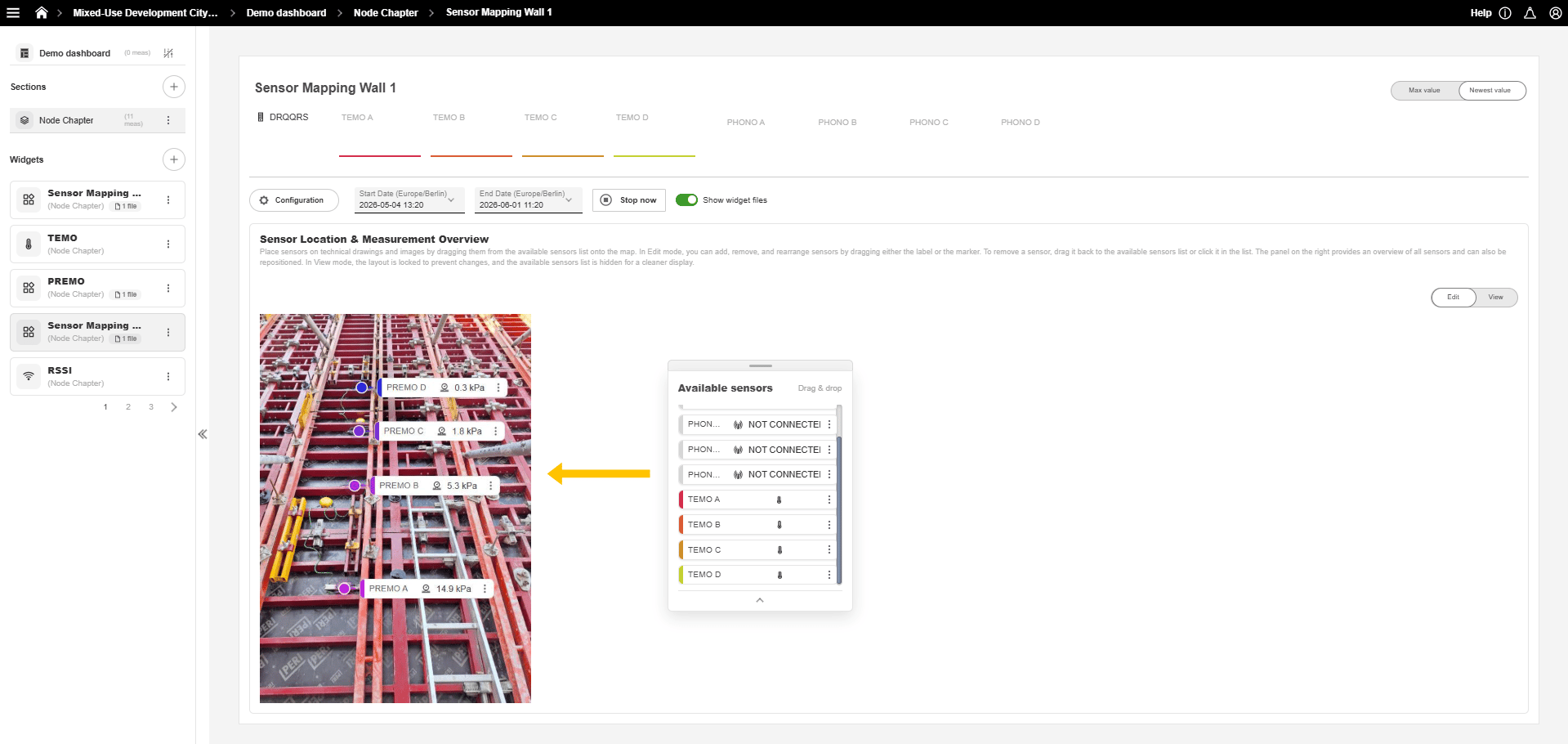


Quick Start Guide Sensor Mapping
Disclaimer: The user is required to observe and adhere to the currently applicable instruction manuals for all Vemaventuri products utilized.
What you need:
- Access to the Vemaventuri Webapplication (https://insite.peri.app/) with a project, dashboard, section and widget.
Step 1:
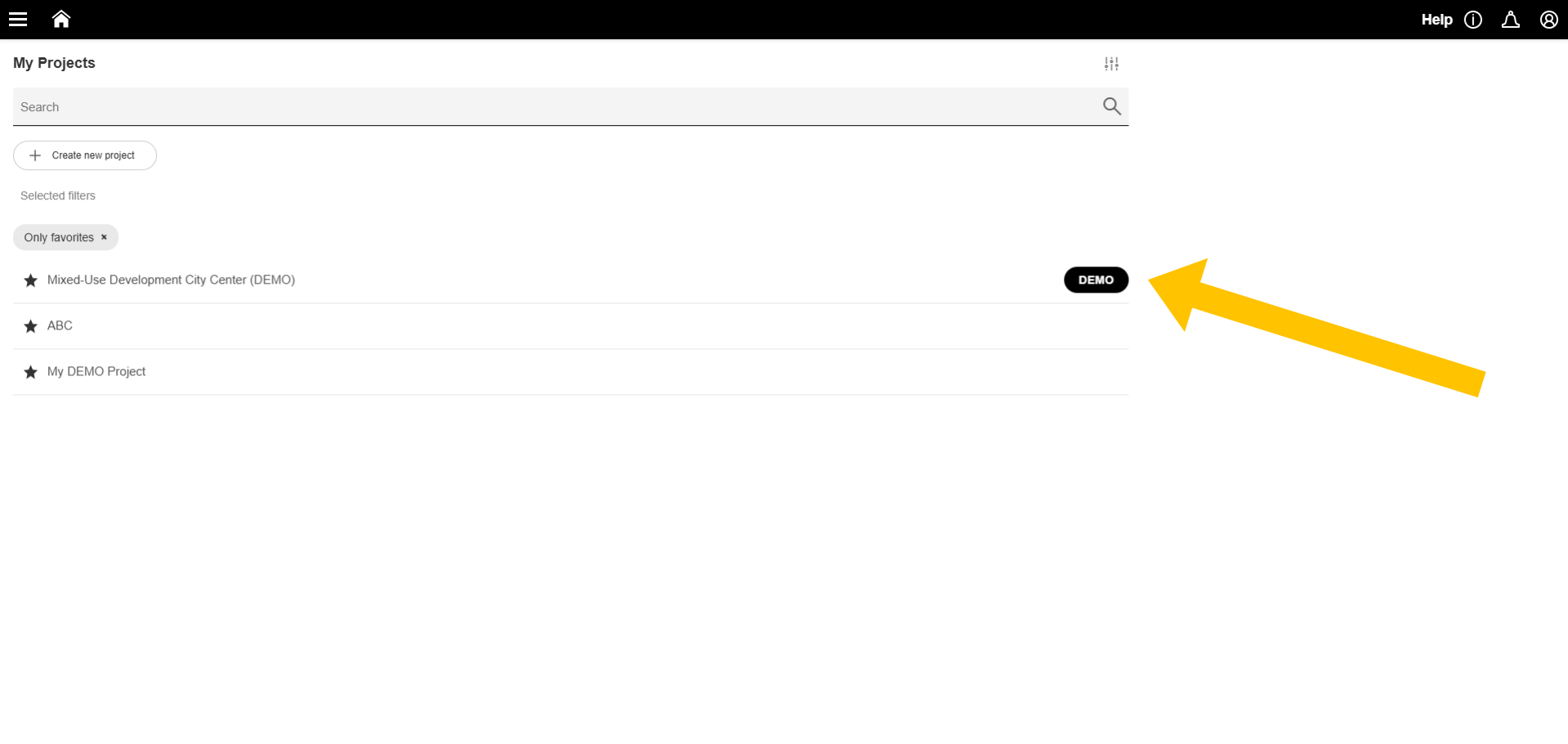
- Navigate to “My Projects” in the WebApp.
- Select the project where you would like to set up the sensor mapping.
Step 2:
- Open the dashboard of your project.
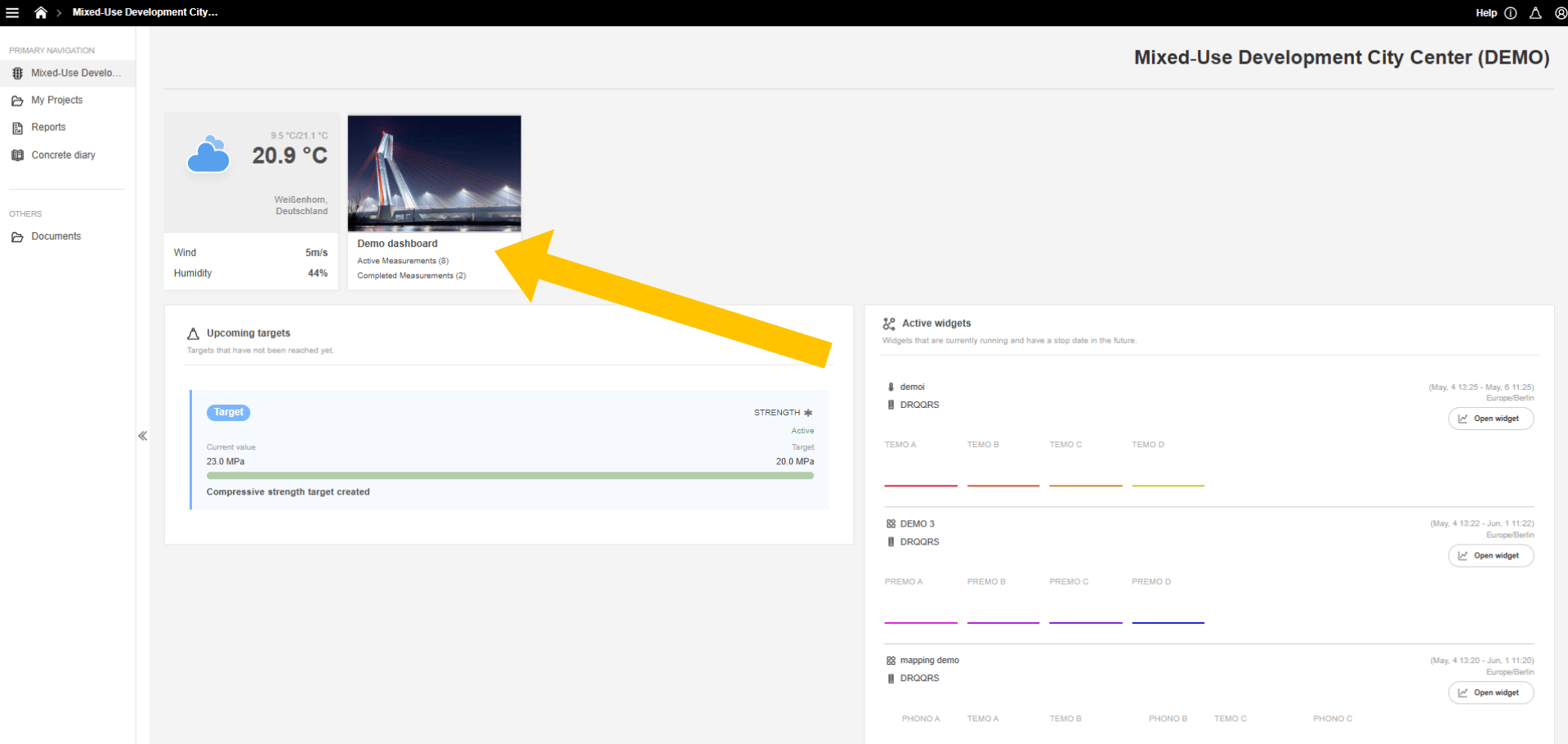
Now there are two options to set up the sensor mapping:
Option A: create a new widget,
Option B: add the sensor mapping to an existing widget.
Option A:
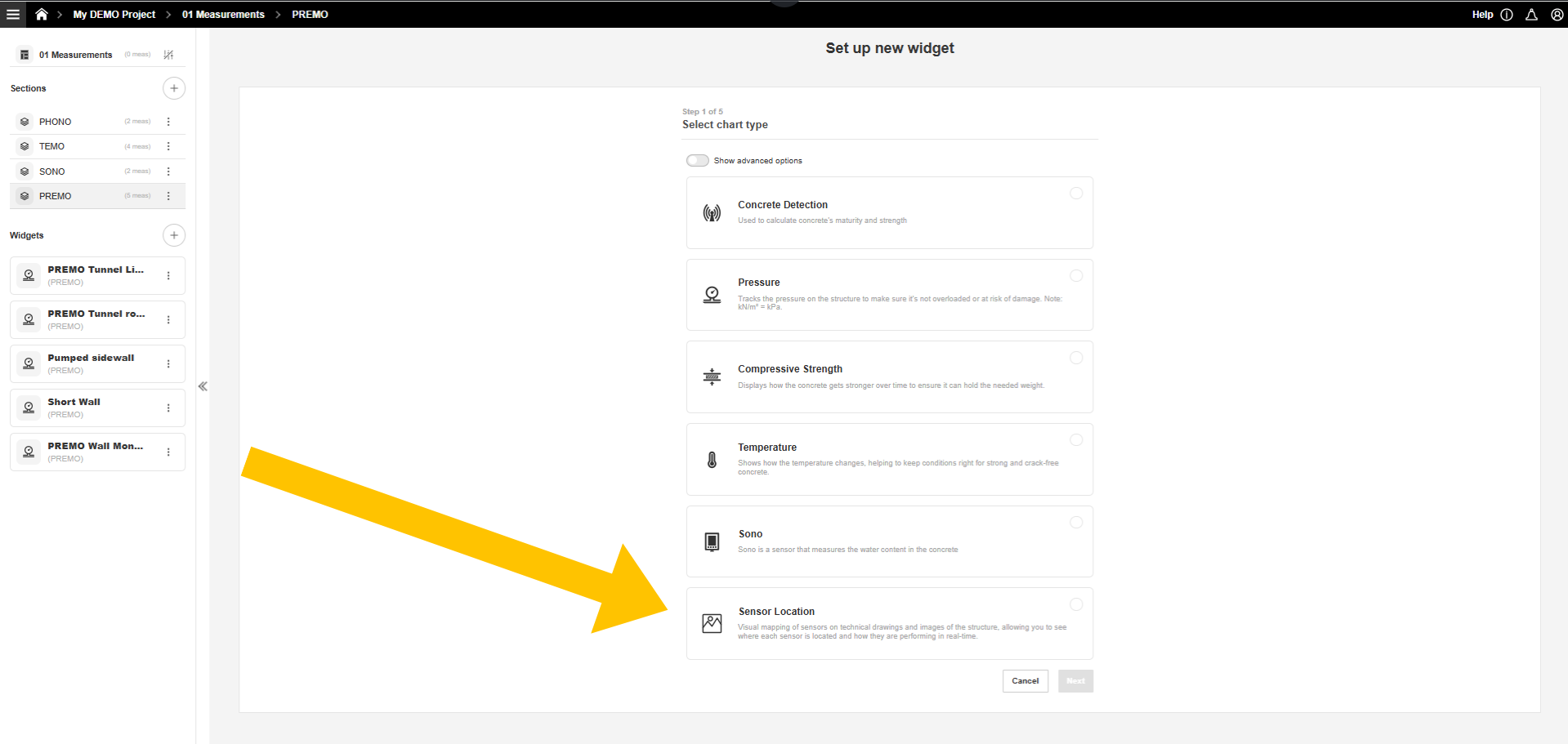
- Create a new widget and select “Sensor Location.”
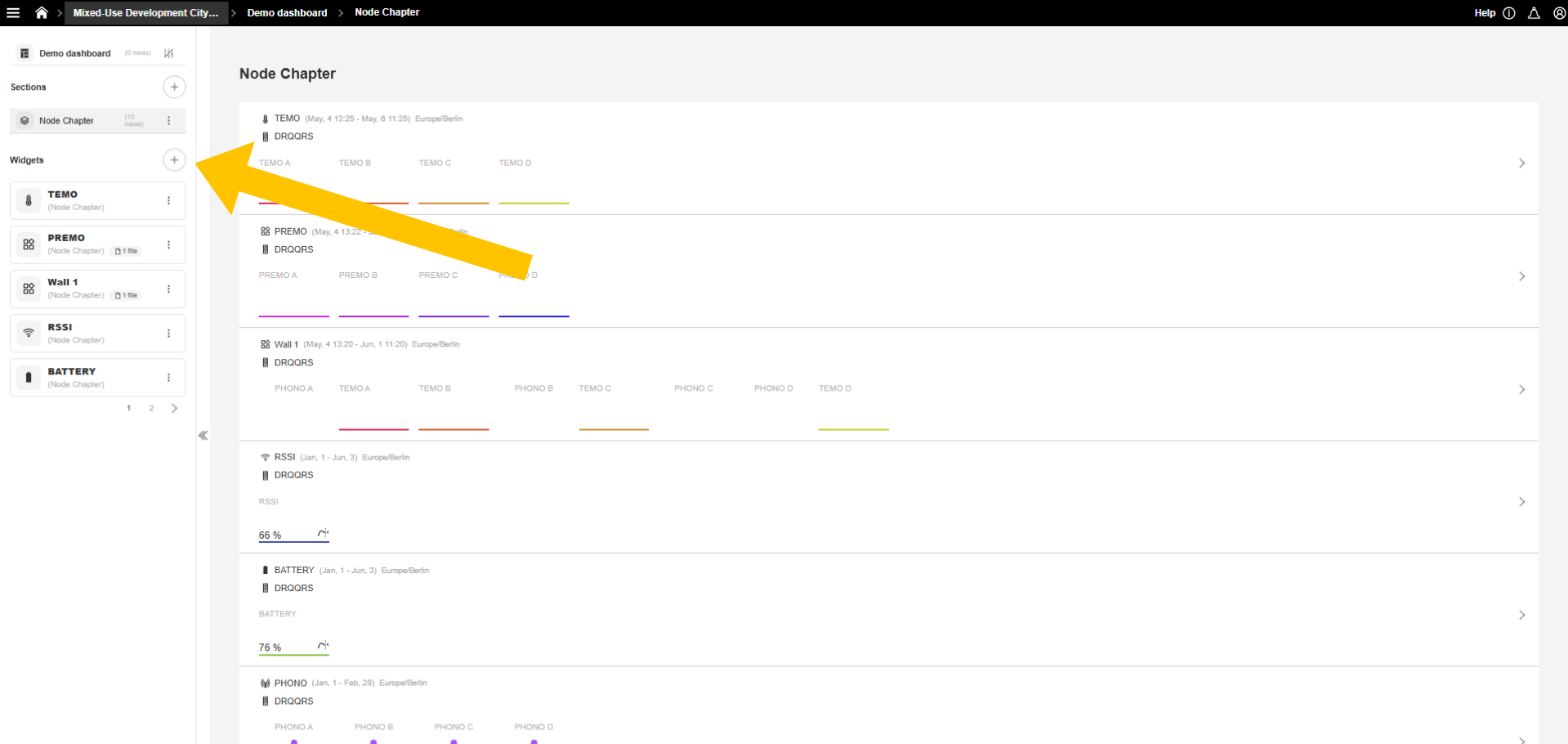
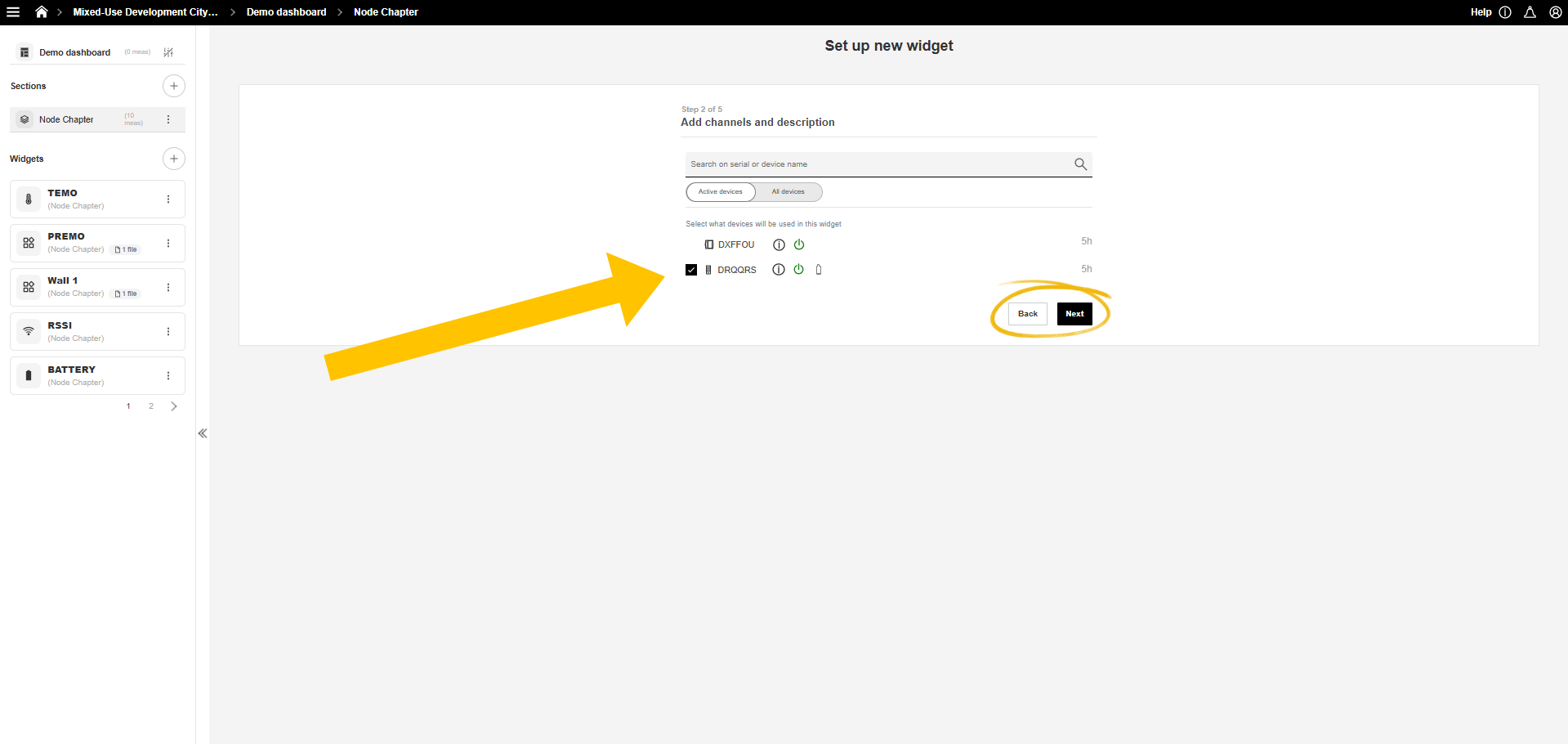
- Add channels with the measurements you want to display on the sensor mapping.
- Click “Next” to continue.
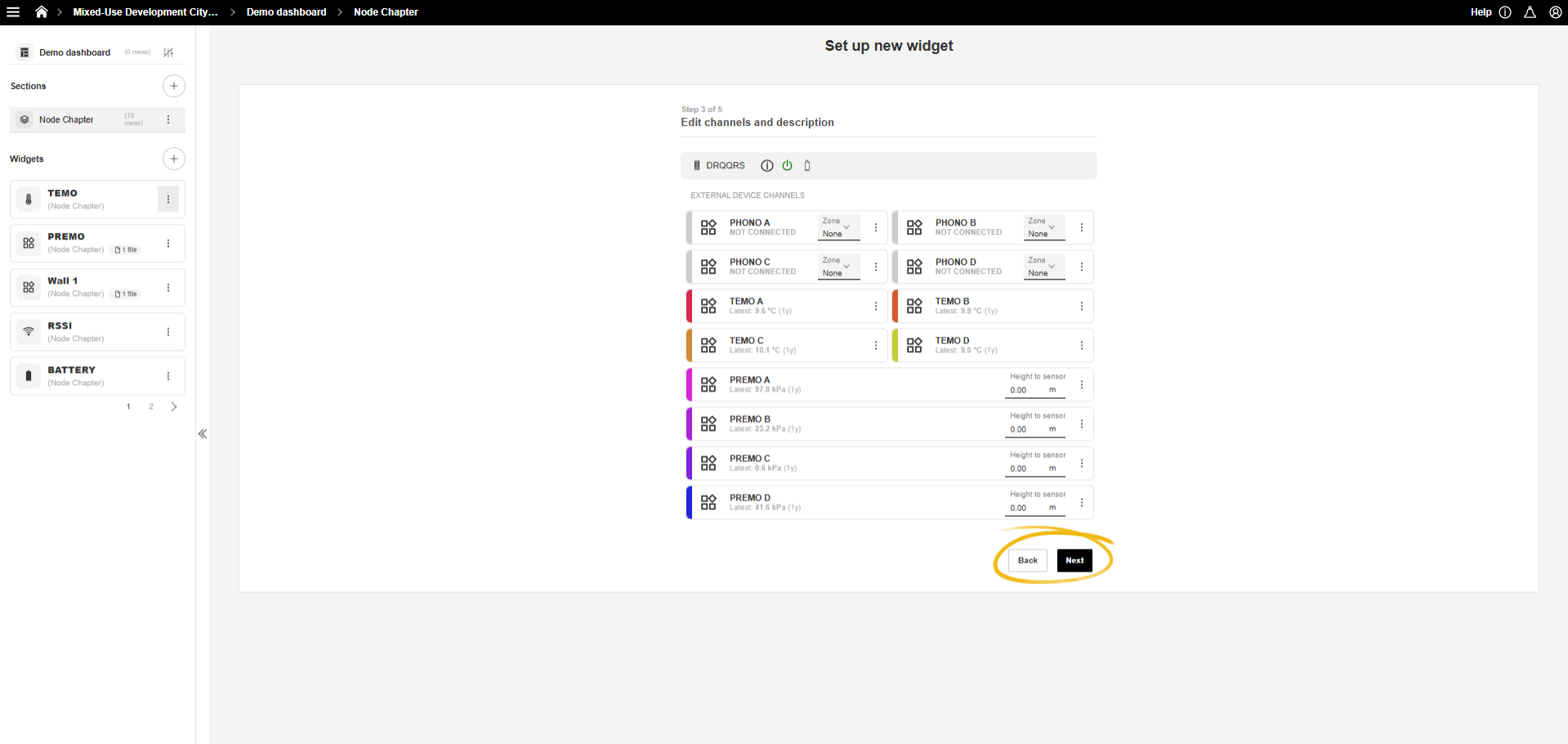
- All measurement points connected to the devices are now displayed. They can be edited by clicking the three dots ("...") next to each measurement point, where the name and color can be adjusted.
- Click “Next” to continue.
-
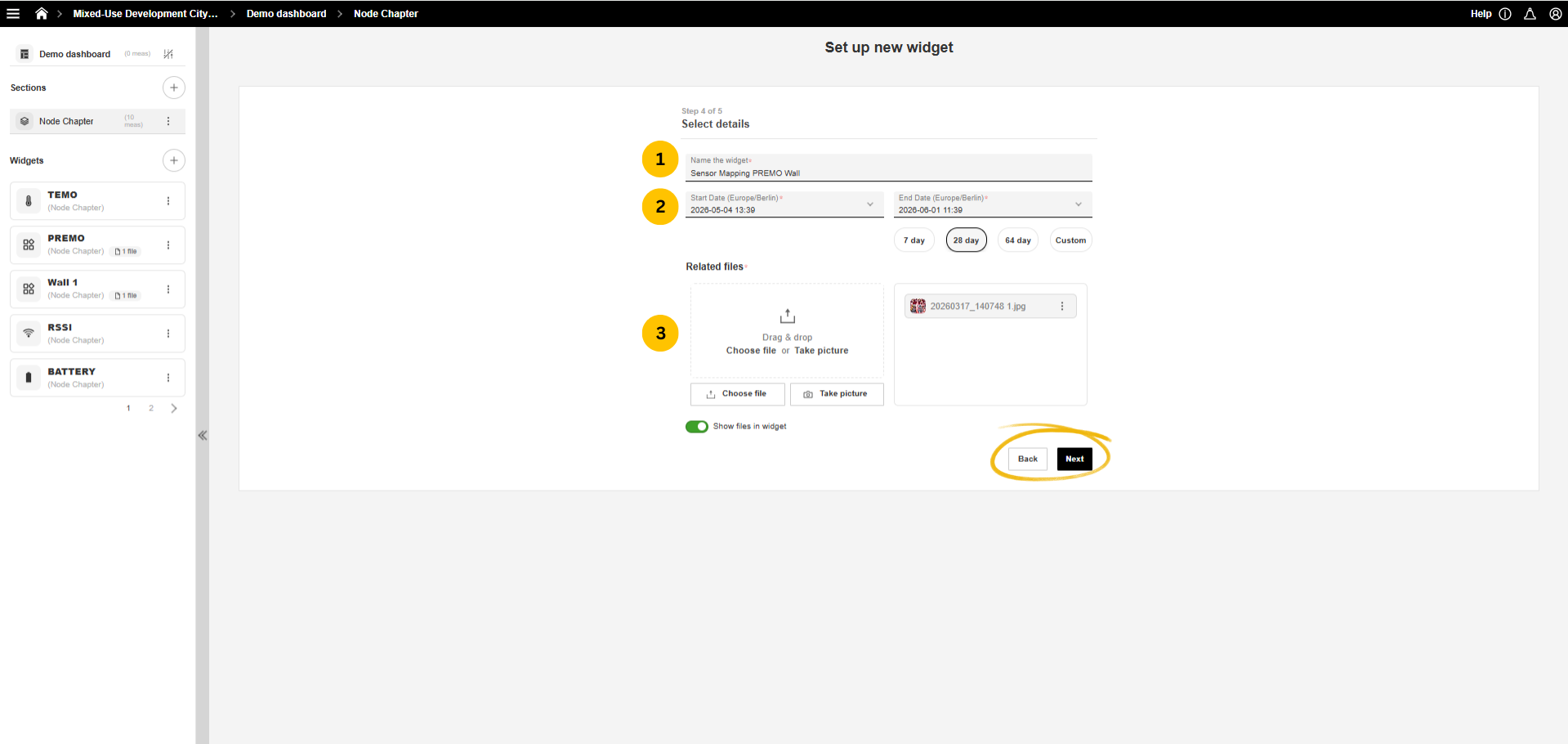
Define the widget settings:
(1) assign a name to the widget,
(2) enter the start and end date of the measurement
(3) take or upload an image.
Click “Next” to continue.
Option B:
-
Click on an existing widget
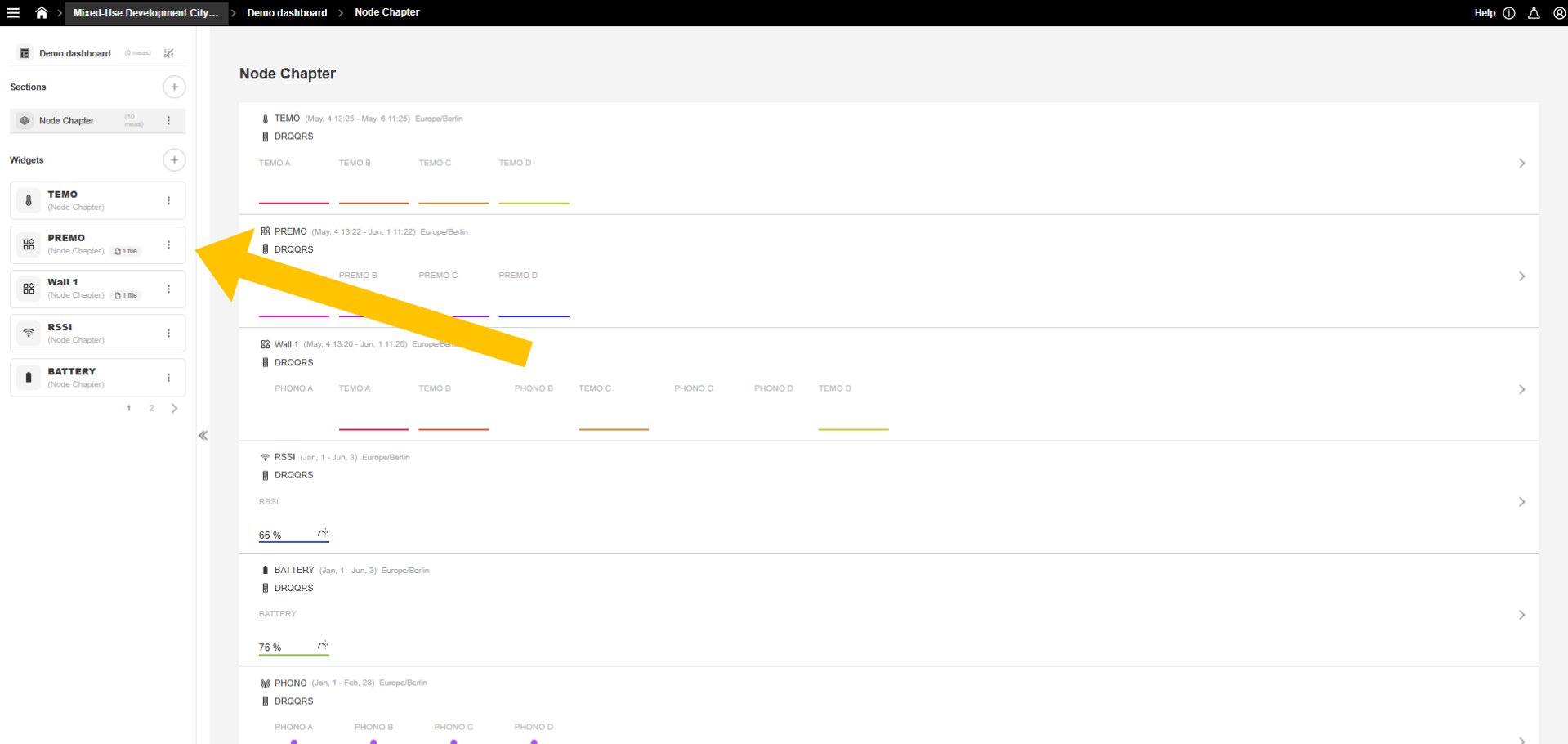
-
Go to “Configuration”
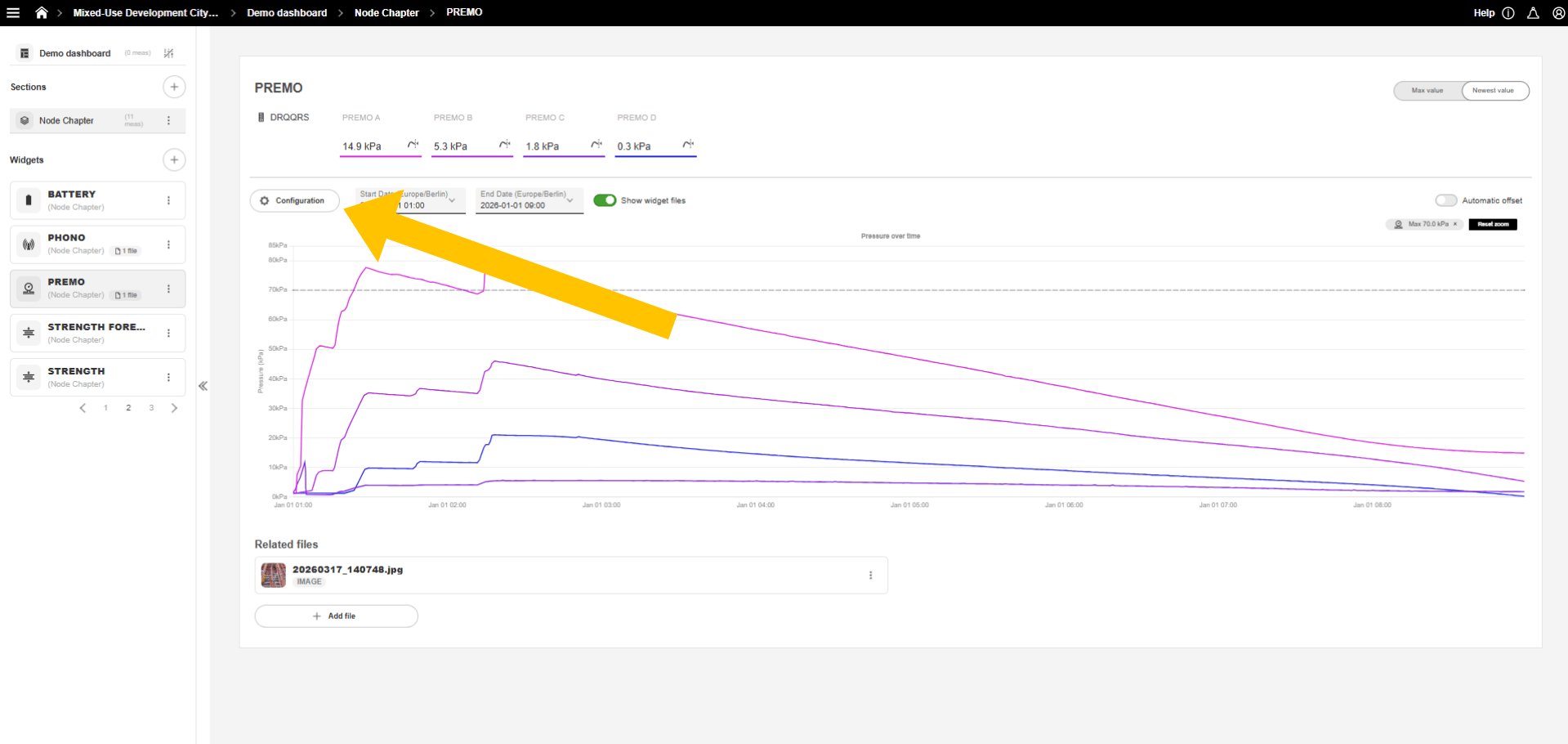
-
Add “Sensor Location” as an Active View under “Charts.”
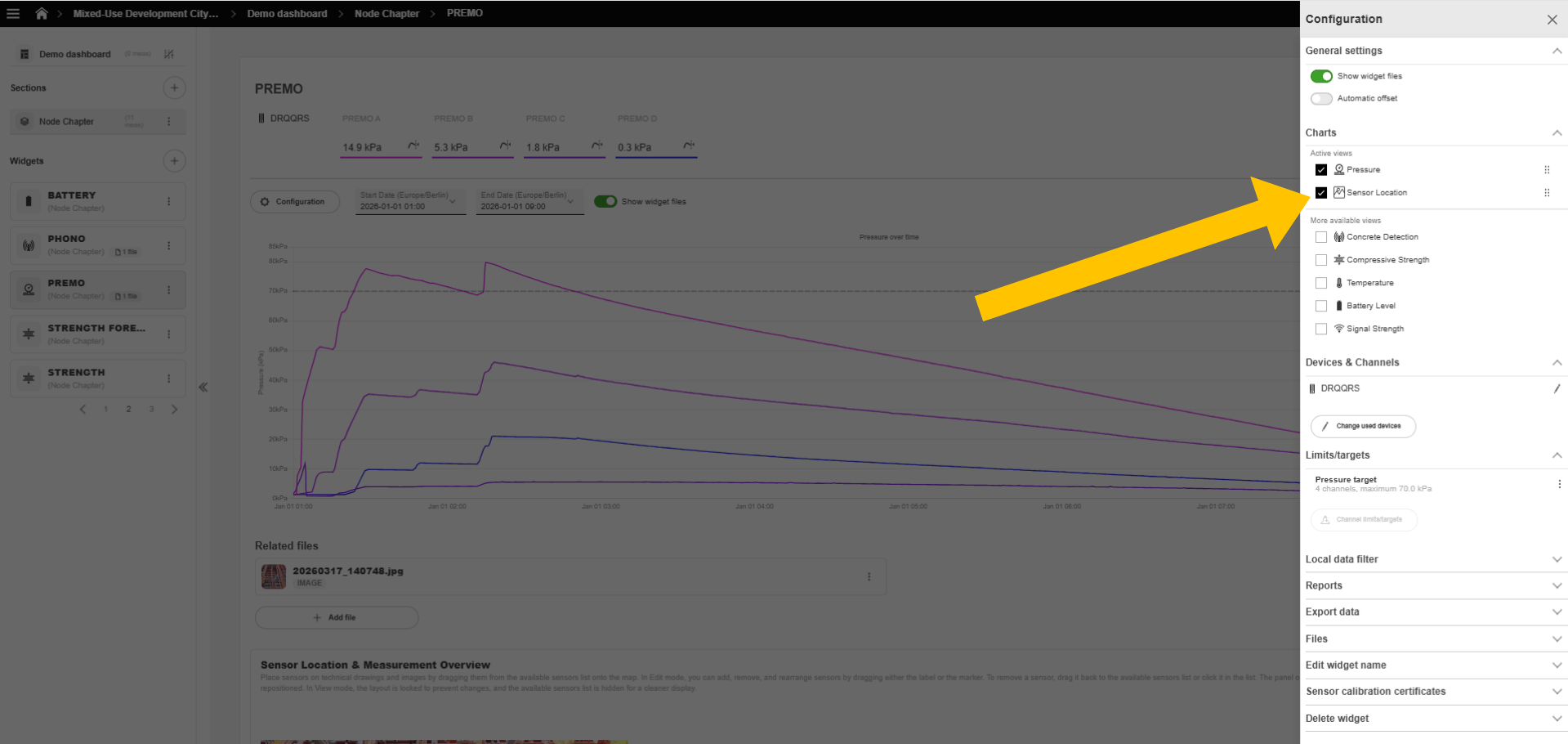
Step 4:
All measurement points are now displayed next to the image, and can be easily dragged and dropped onto the corresponding positions on the image.