

Quick Start Guide TEMO Link
Disclaimer: The user is required to observe and adhere to the currently applicable instruction manuals for all Vemaventuri products utilized.
01 Preparation
Step 1: Unboxing
Welcome to your TEMO Link!
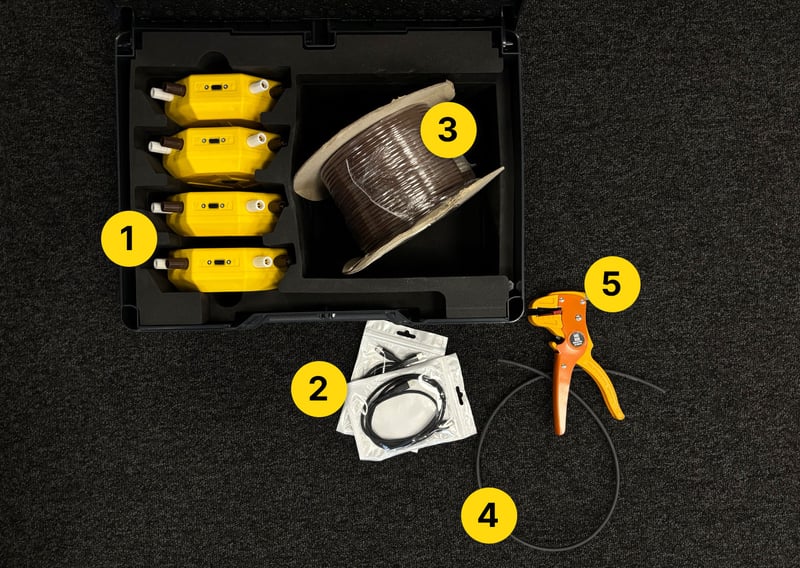
Inside the box, you’ll find:
1) 4x TEMO Link devices
2) 2x USB-C charging cable
3) Type-T thermocouple cable (or pre configured cables)
4) Heat Shrinks
5) Wire Stripper
Note: Due to country-specific regulations, a power adapter is not included in the set.
Step 2: Charge the Device
Before getting started, we recommend fully charging your TEMO Link.
Use the included USB-C cable to connect it to a suitable power source
.jpg?width=800&height=569&name=2%20(2).jpg)
02 Setup & Configuration
Step 3: Power On the Device
- Turn on the TEMO Link device by pressing and holding the ON/ OFF button for three seconds.
- Device LED blinks green
Note: If the device has been connected to a previous project:
1. Turn on the device.
2. Press the ON/OFF button once.
3. Wait until the green LED turns on.
4. Quickly press the button 4 more times to make the LED blink green.
.jpg?width=800&height=569&name=3%20(1).jpg)
Step 4: Scan the QR-Code
Either scan the QR code shown on the device, enter the URL displayed on the screen, or simply click the URL (https://insite.peri.app/c) to continue and follow the on-screen instructions.
The serial number can be found on the back of the device under S/N:.
.jpg?width=800&height=569&name=4%20(1).jpg)
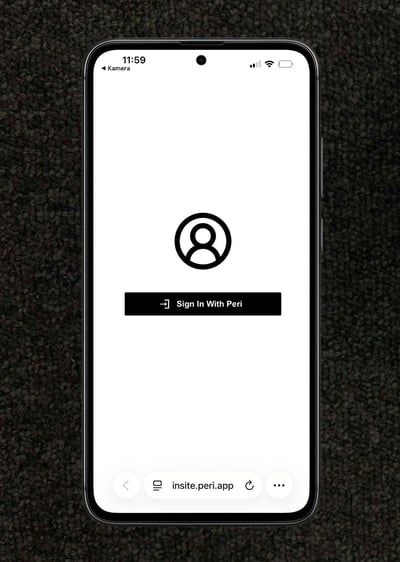
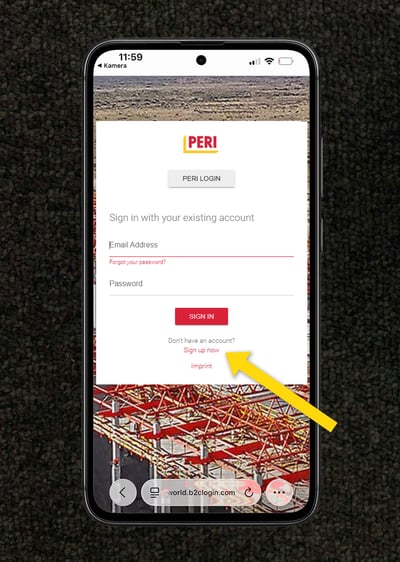
Step 5: Sign In
- Click “Sign in with PERI.”
Don’t worry about being redirected — our web platform uses the same secure technology as the central PERI customer portal for a seamless experience. - Log in with your credentials or click “Sign up now” to create a new account.
Step 6: Confirm Device
- After signing in, your TEMO Link will automatically appear in the WebApp when using the QR code. If you are using the link instead, enter the serial number on the back of the device
- Once verified, click “Next” to finalize the connection process.
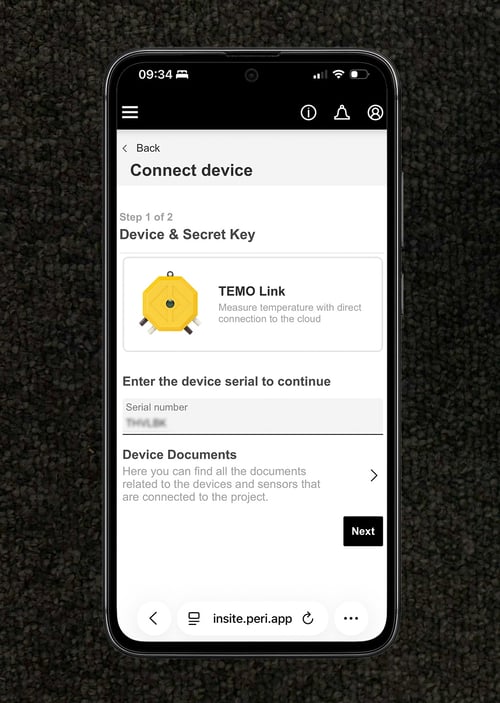
Step 7: Select or create new project
- Select existing project:
If you’ve already created a project in the Web App, select it from the list. - Create new project:
If this is your first setup, select this option to create a new project. You can name your project and define its details in the next step.
Step 8: Complete Project Setup
Finalize your project setup by entering the required details:
- Project & Customer: Add a project name, company name, and (optional) customer or concrete catalog.
- Location: Enter the project address, weather forecast city, and select the correct timezone.
- Measurement Units: Choose Metric, Imperial/US, or Custom and define your preferred units.
.jpg?width=380&height=534&name=7-5%20(1).jpg)
.jpg?width=380&height=534&name=7-6%20(1).jpg)
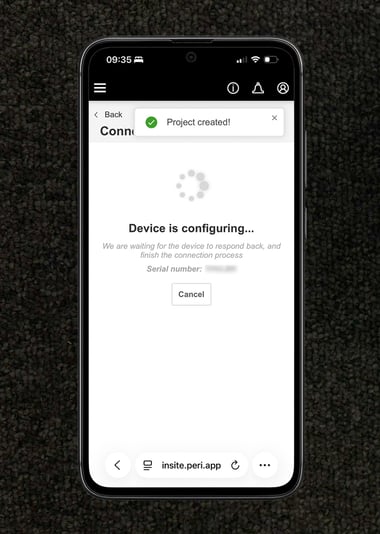
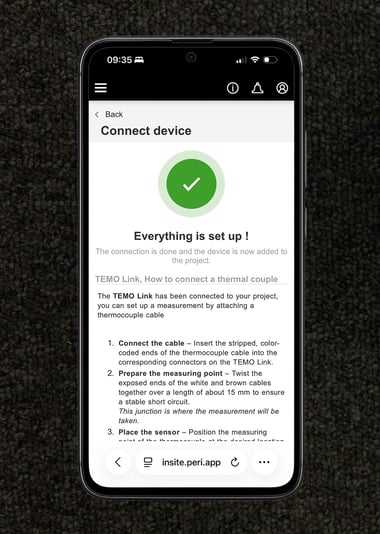
After entering all required information, tap "Next". The device will then automatically configure itself.
Please wait until the process is completed.
03 Measurement
Step 10: Set up the measuring points
Watch the video or follow the steps below:
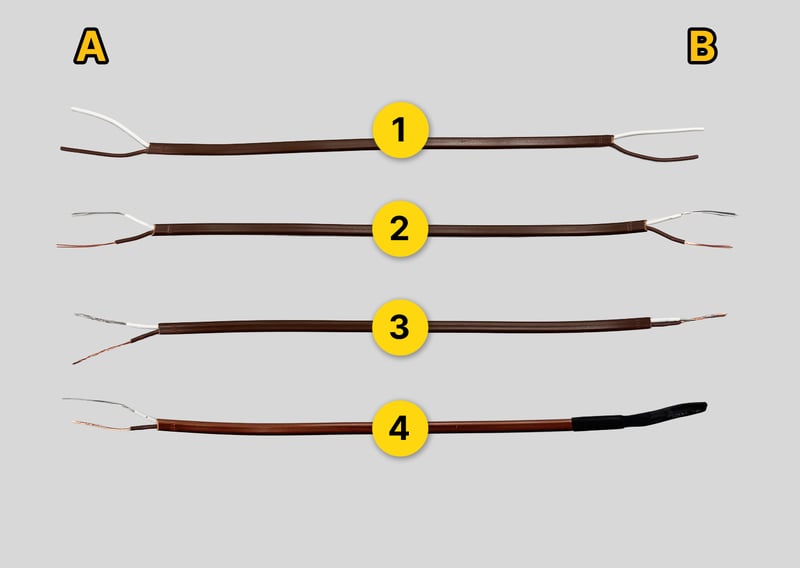
Cut off the required length of cable from the thermocouple roll.
1) Strip the outer insulation
Remove the outer insulation on both ends of the cable with the wire stripper to expose the two inner conductors.
2) Strip the inner conductors
Strip approximately 12–15 mm of insulation from each of the two inner wires.
3) Twist the conductors
Side A: Twist the two inner conductors individually.
Side B: Twist the two inner conductors together into one combined twisted end.
4) Apply heat-shrink on Side B
Slide a heat-shrink tube over the combined twisted end on Side B and shrink it with a lighter until it is tight and secure.
Step 11: Connect the thermocouple to the TEMO Link
- Loosen the terminal screw until the stripped wire end can be wrapped once around the threaded bolt.
- Attach the brown wire to the brown (+) terminal.
- Attach the white wire to the white (–) terminal of the same channel.
- Ensure that only one thermocouple is connected to each channel
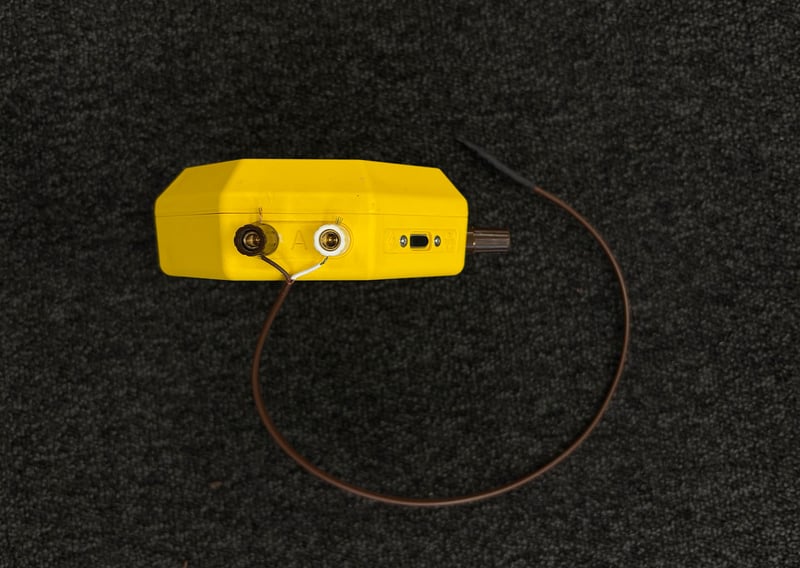
Step 12: Fix the Measuring Point Inside the Formwork
Place the heat-shrinked cable end at a suitable measuring point inside the formwork and secure it firmly to the reinforcement with a cable tie so it cannot move.
Note: Ensure the cable is not pinched or trapped between rebar layers.
Tip: Mark each device with a sticker and document both its position and the thermocouple positions—this will make the web app setup much easier later on
.jpg?width=800&height=569&name=12%20(1).jpg)
Step 13: Start the Measurement
The measured data is automatically received from the connected sensors. The device wakes up every 15 minutes to record a temperature measurement and attempts to upload the logged data every hour.
Note: To force an immediate data transmission to the web app, press the device’s button once.
Concrete Maturity Measurement (Optional)
If you want to measure concrete maturity, the concrete must be calibrated in advance.
Calibration is not part of this Quick Start Guide.
Please refer to the Quick Start Guide - Concrete Calibration for detailed instructions.
04 WebApp
Step 14: Create Dashboards and Reports in the WebApp
Open your project in the web app and create a dashboard. To display measurements in your dashboard, add a new widget by clicking “+ Add measurement” in the desired section. Follow the on-screen steps to link your device to the widget.
To create a report, click “Configuration” and scroll down to the Reports section.
Note: If measurements are not visible, check the selected date range and verify your device’s connectivity.